
- PocketCloud
- /
Troubleshooting
- /
- Client Unable to Connect to Device
¶ Troubleshooting Guide for Client Unable to Connect to Device
¶ LAN Connection
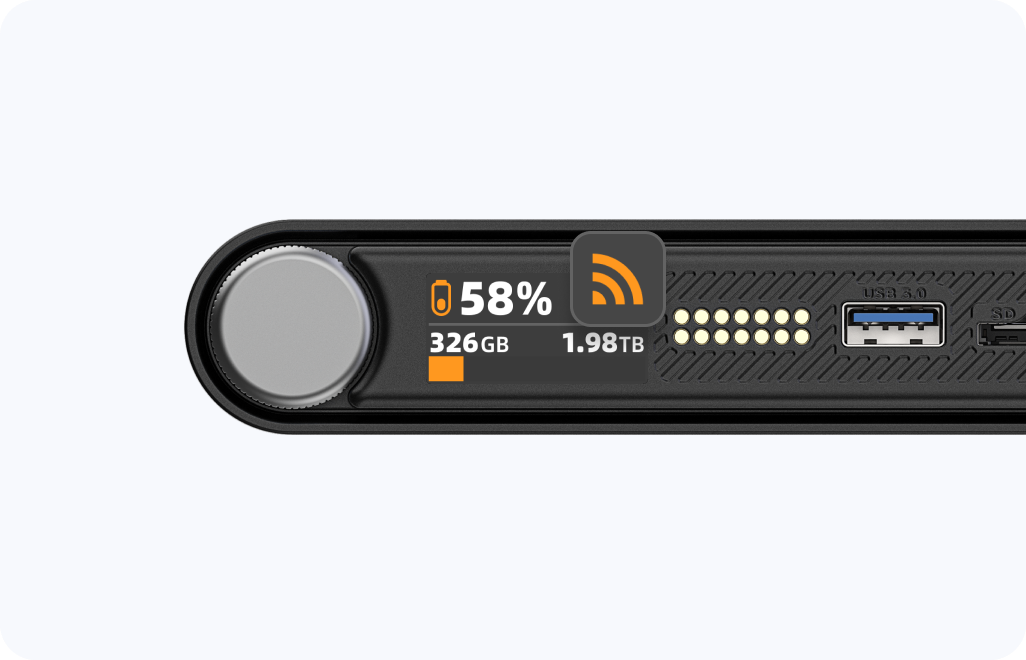
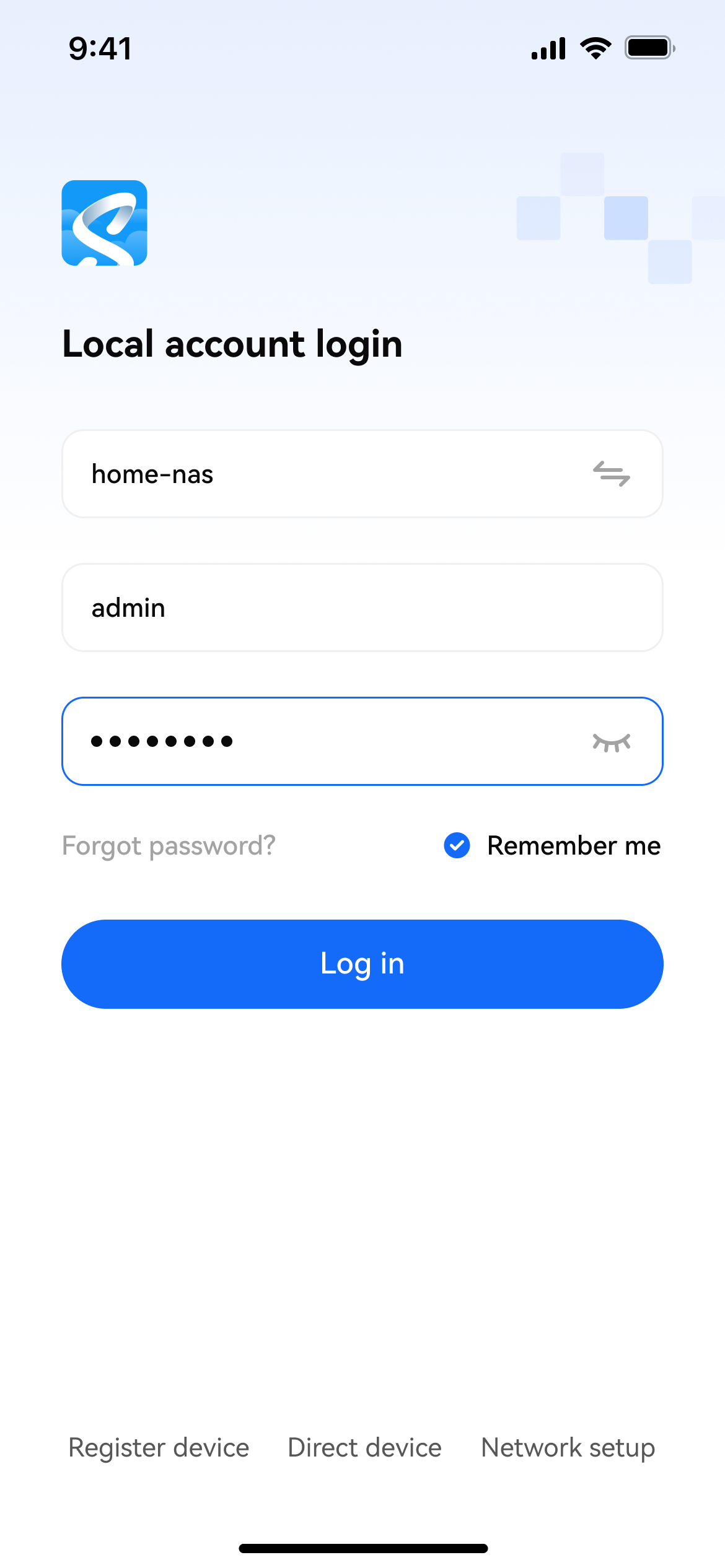
- Make sure the device has been configured for network access, and that your phone and the device are on the same LAN
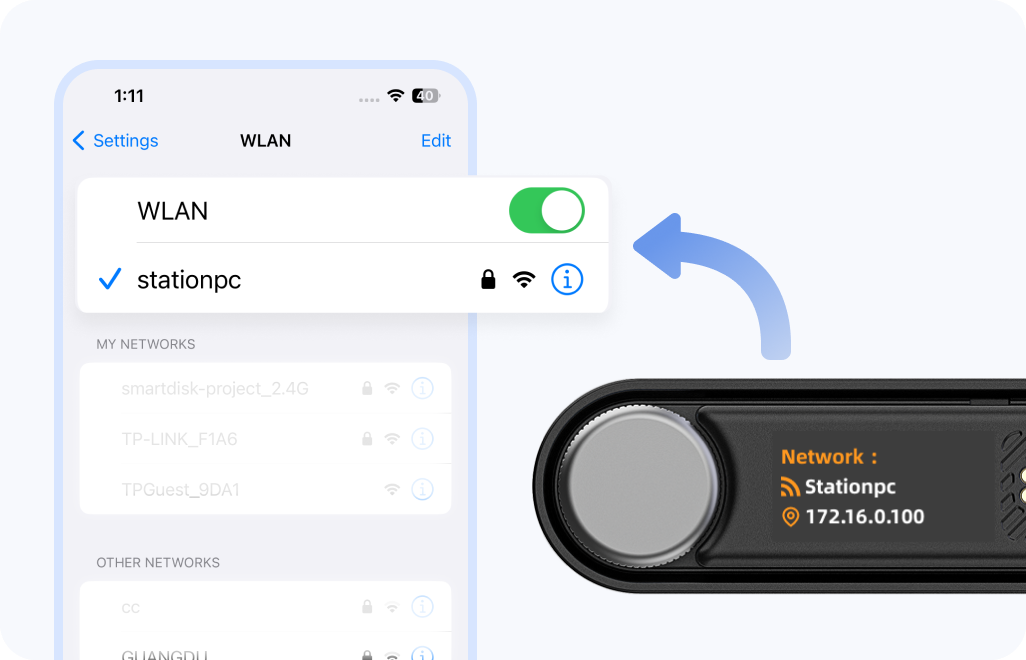
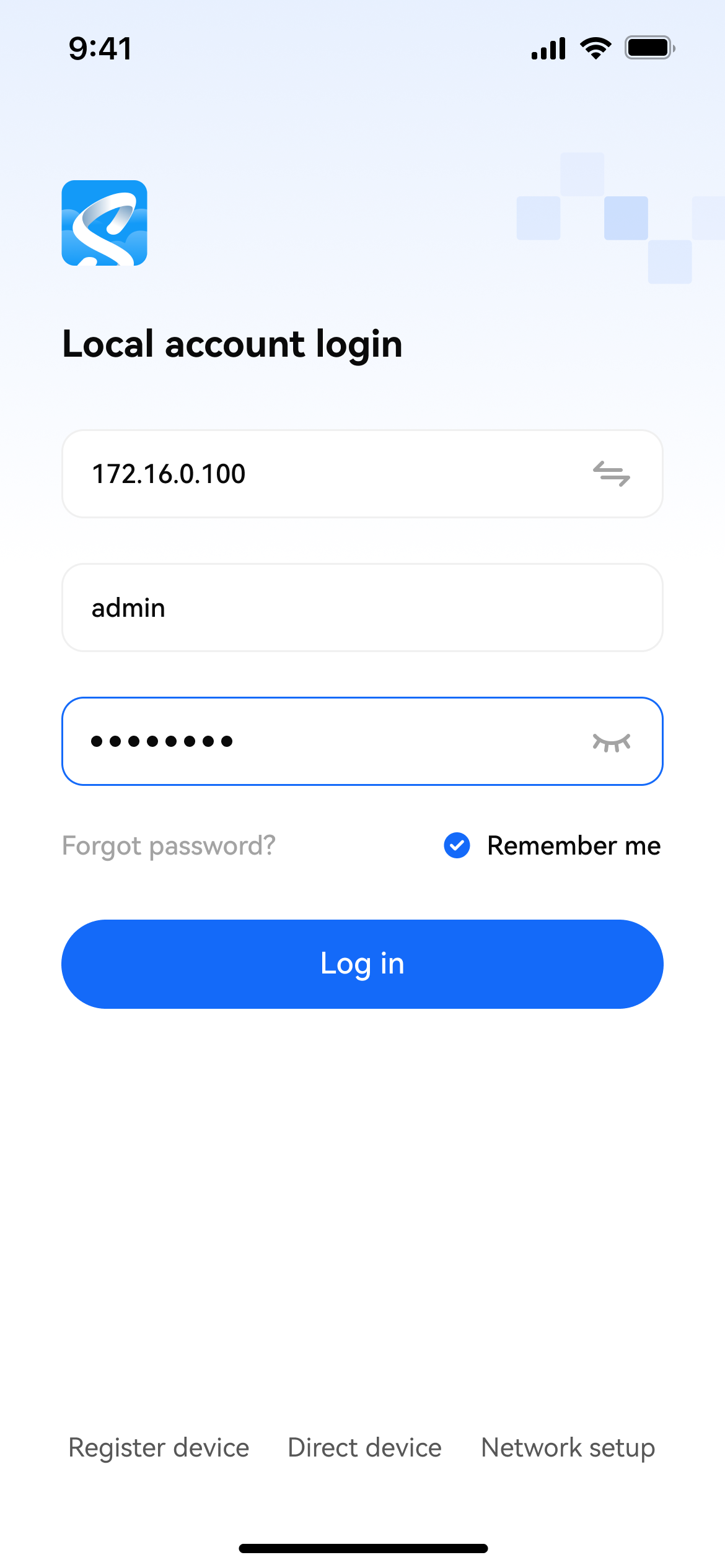
- Enter the correct device IP address, account, and password to log in
¶ Direct Connection
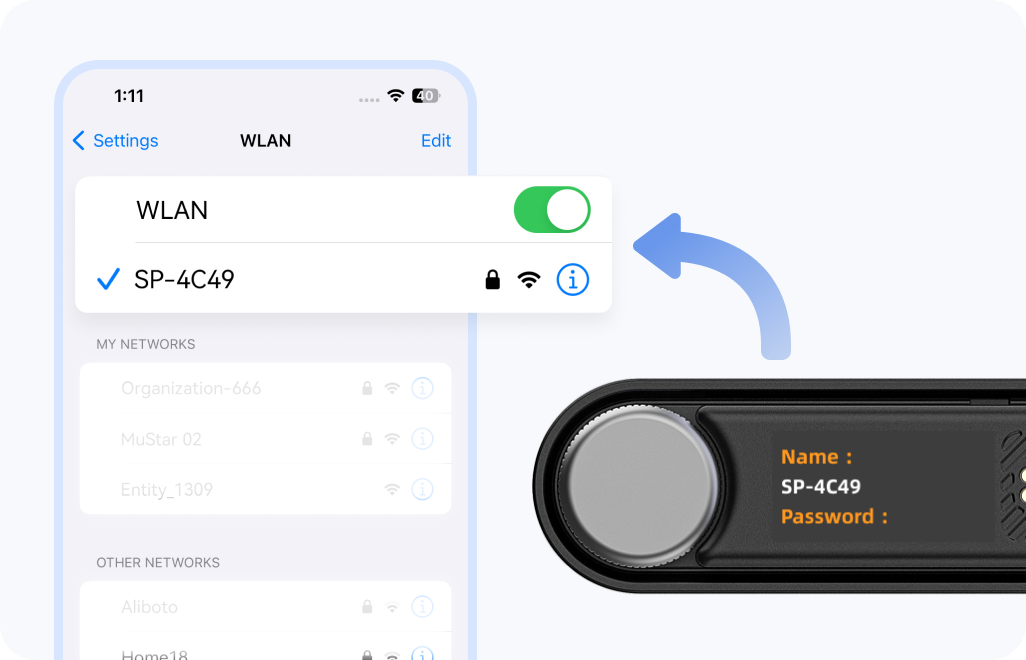
- Make sure the device has entered direct connection mode, and that your phone is connected to the hotspot network generated by the device
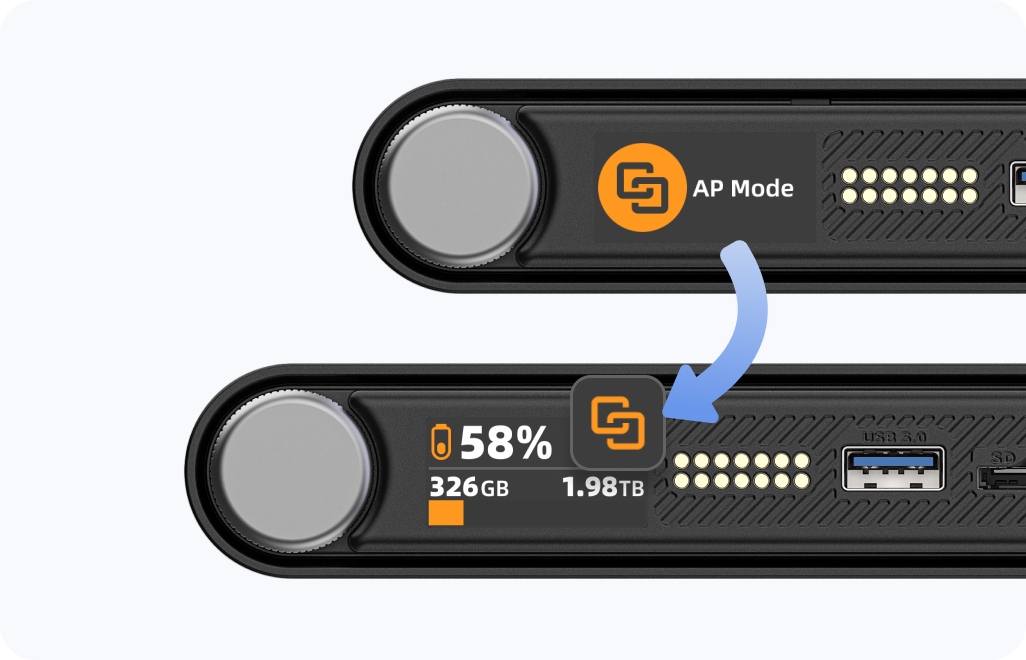
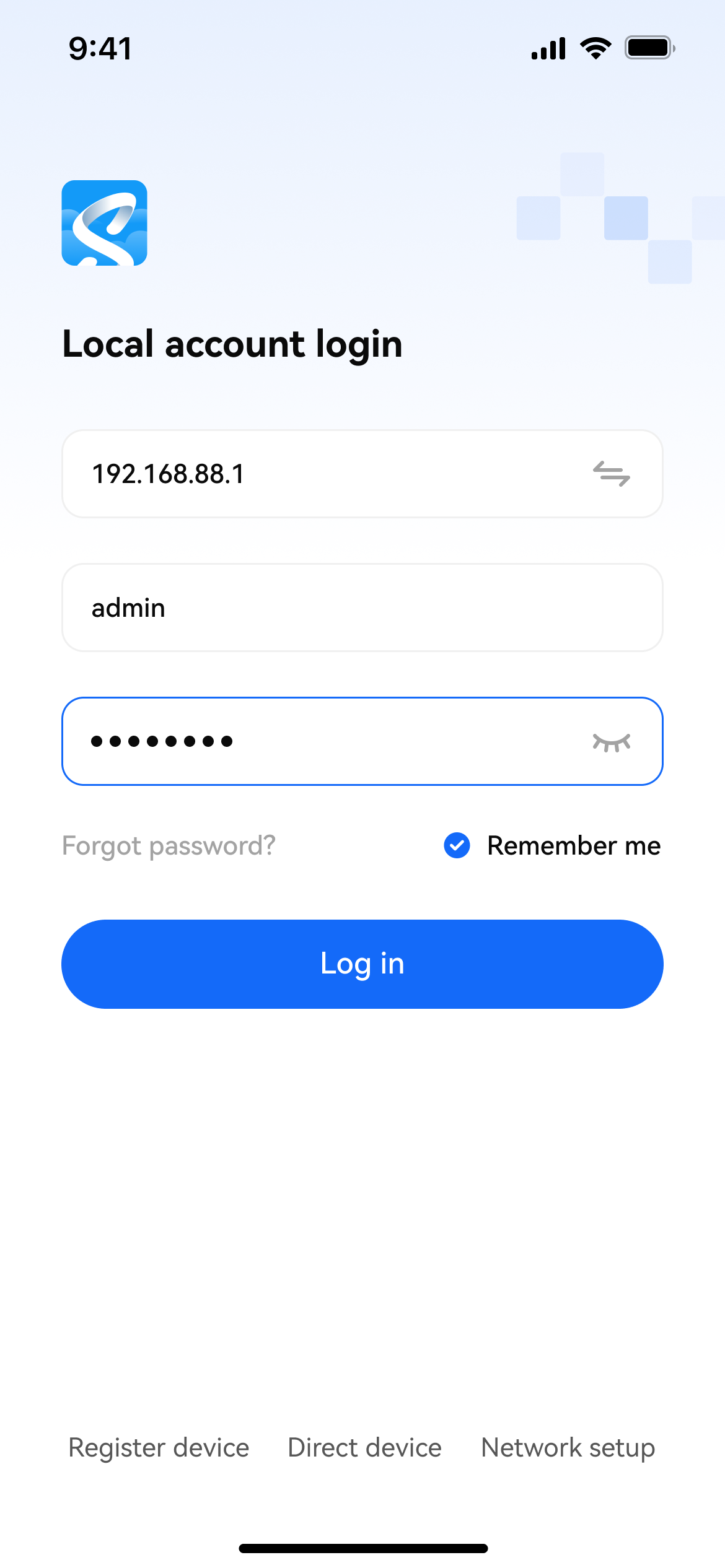
- Enter the correct device IP address (fixed at 192.168.88.1), account, and password to log in
¶ Remote Connection
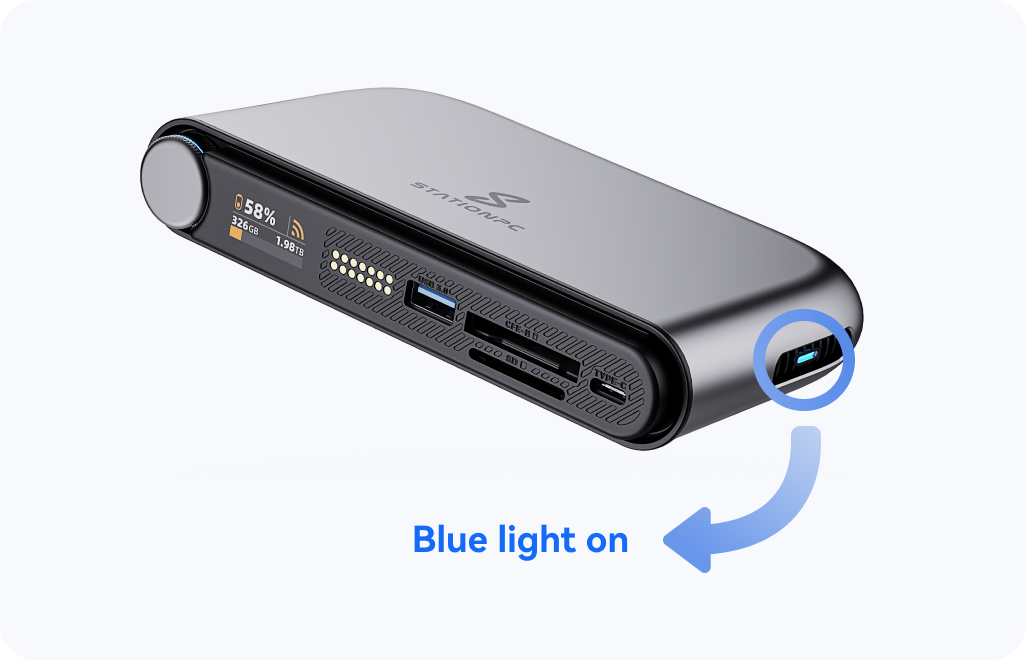
- Make sure the device has been configured for network access, can access the external network normally, and the side indicator is blue
- Make sure remote access has been enabled on the device
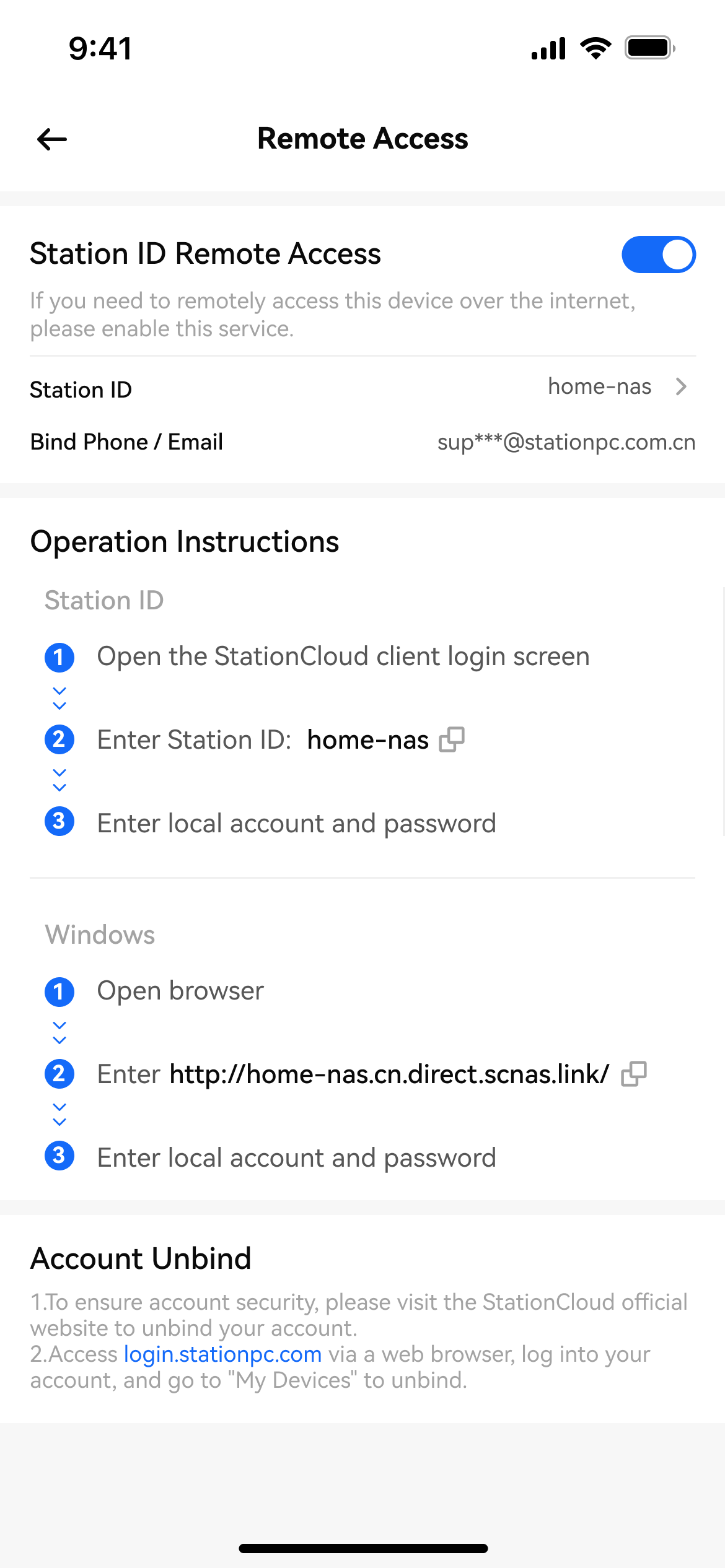
- Enter the correct Station ID, account, and password to log in
¶ Other Notes
- If the connection fails, troubleshoot each access method step by step and make sure every step is completed correctly
- If the issue persists, submit feedback with logs and contact customer support
¶ LAN Connection
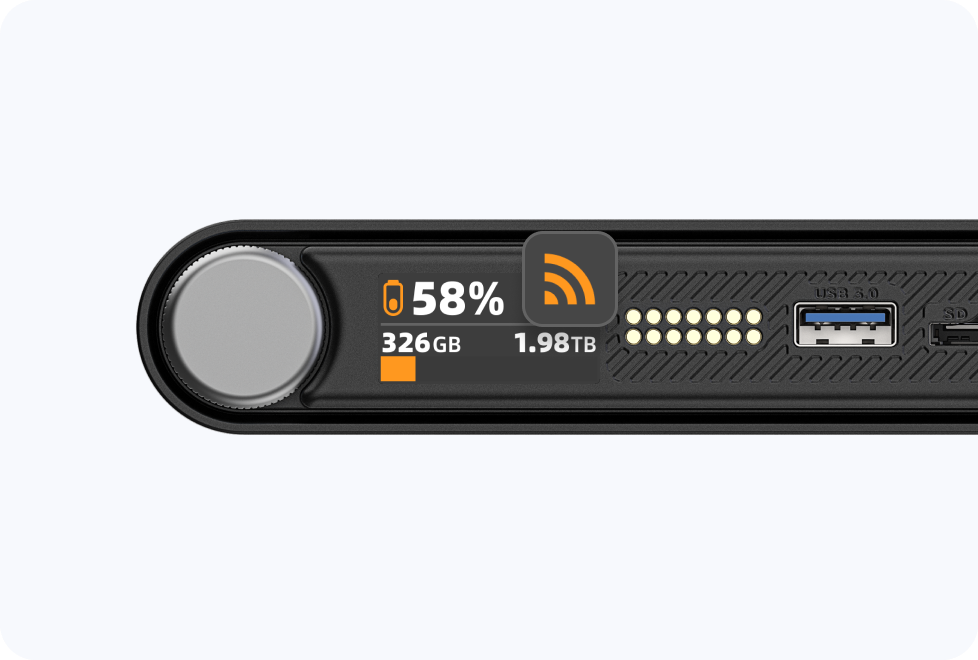
- Make sure the device has been configured for network access, and that your computer and the device are on the same LAN
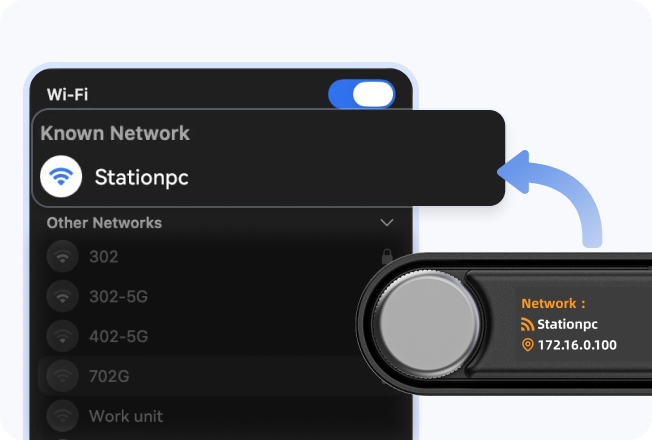
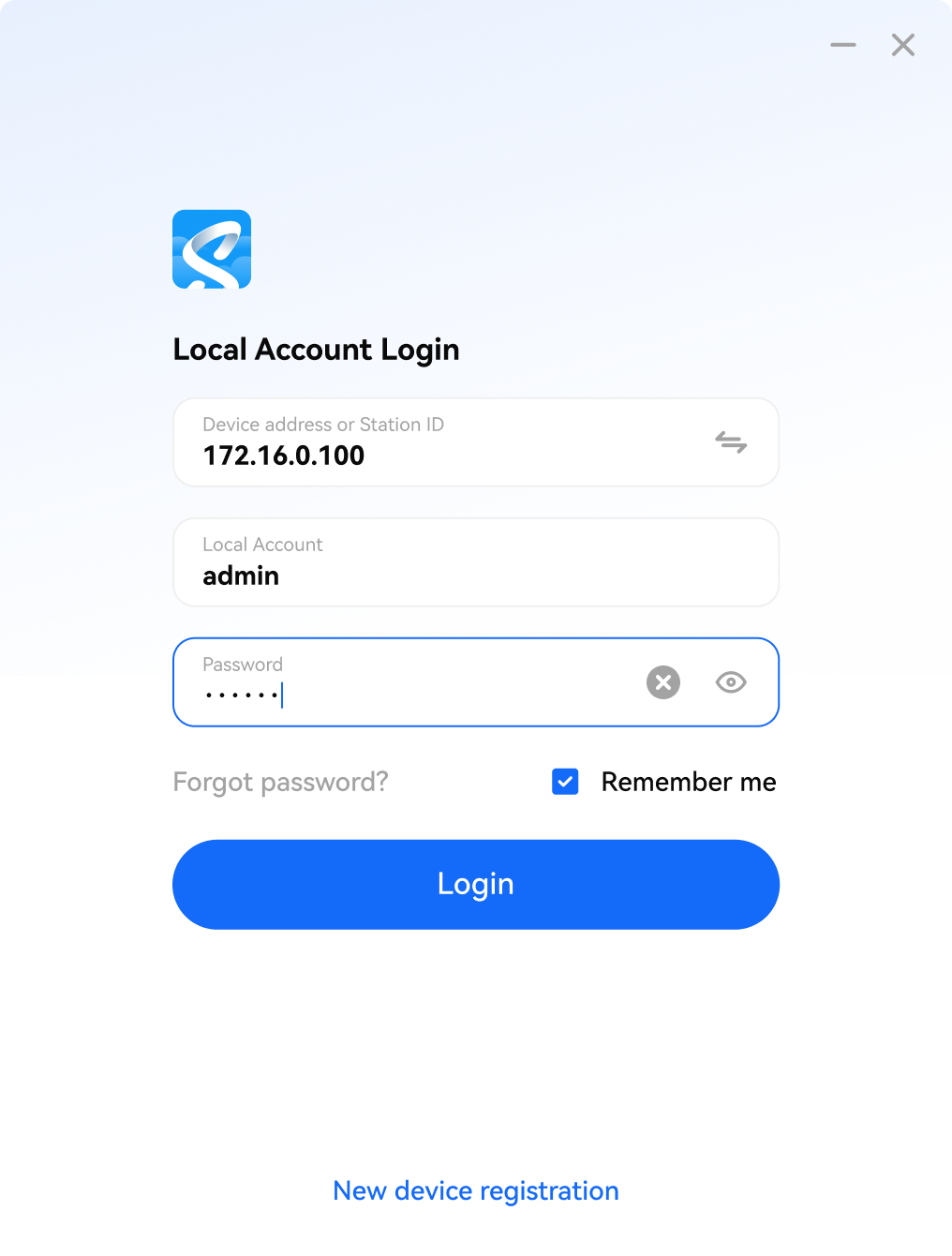
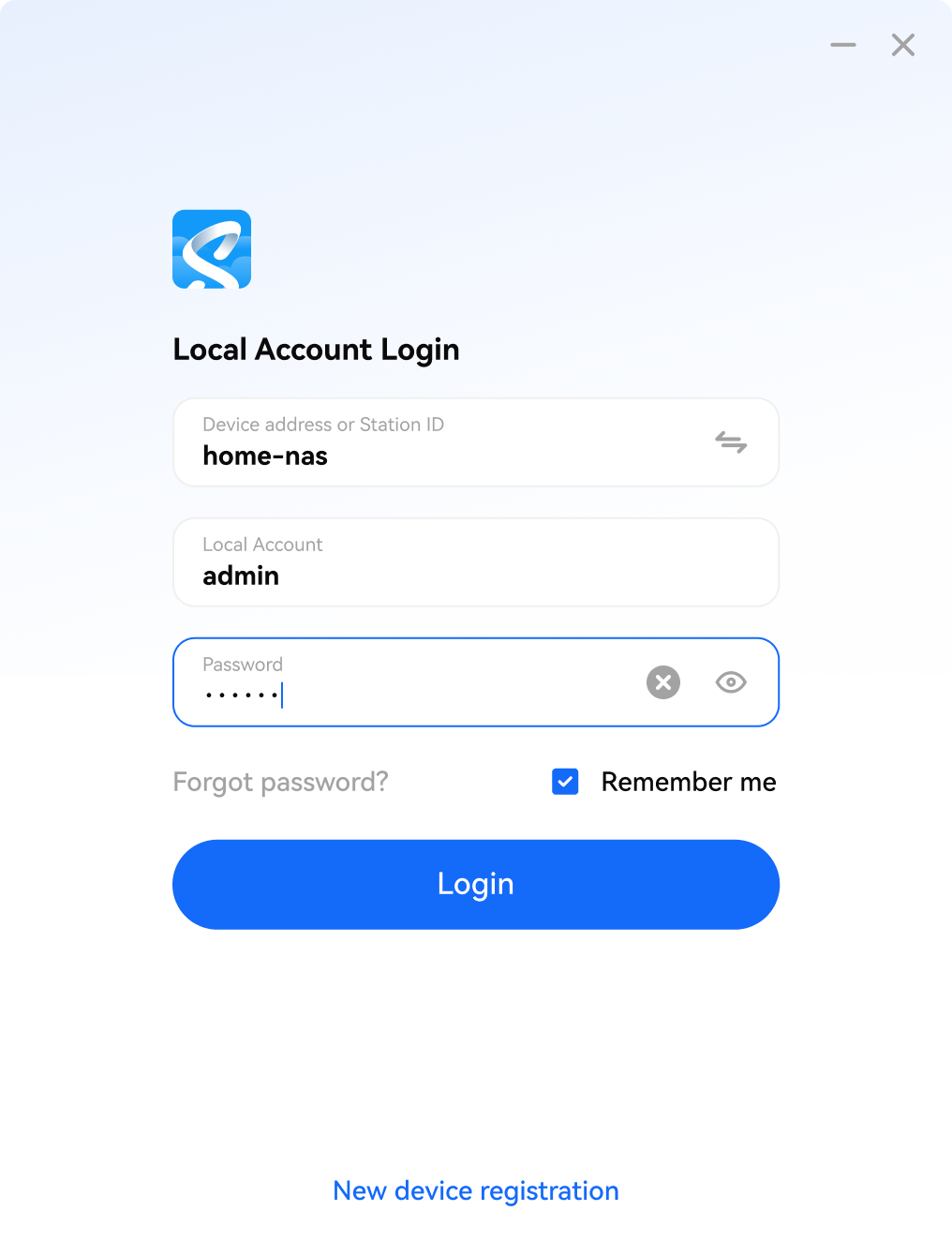
- Enter the correct device IP address, account, and password to log in
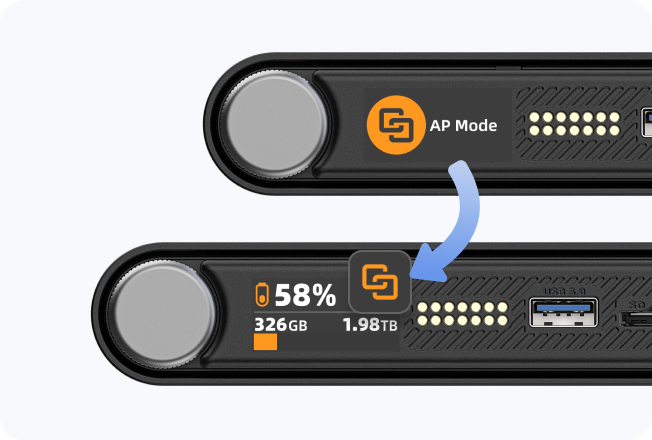
¶ Direct Connection
- Make sure the device has entered direct connection mode, and that your computer is connected to the hotspot network generated by the device
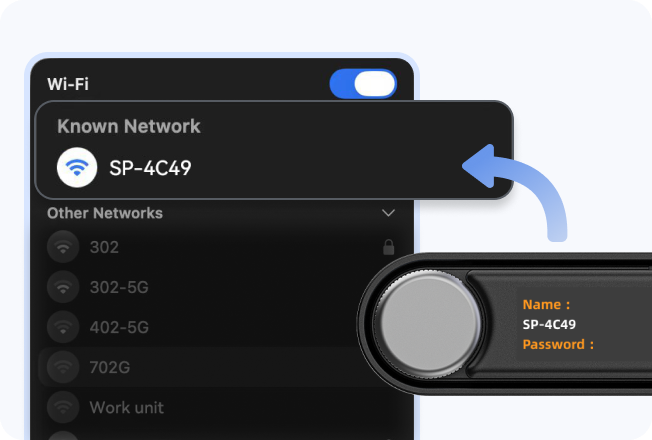
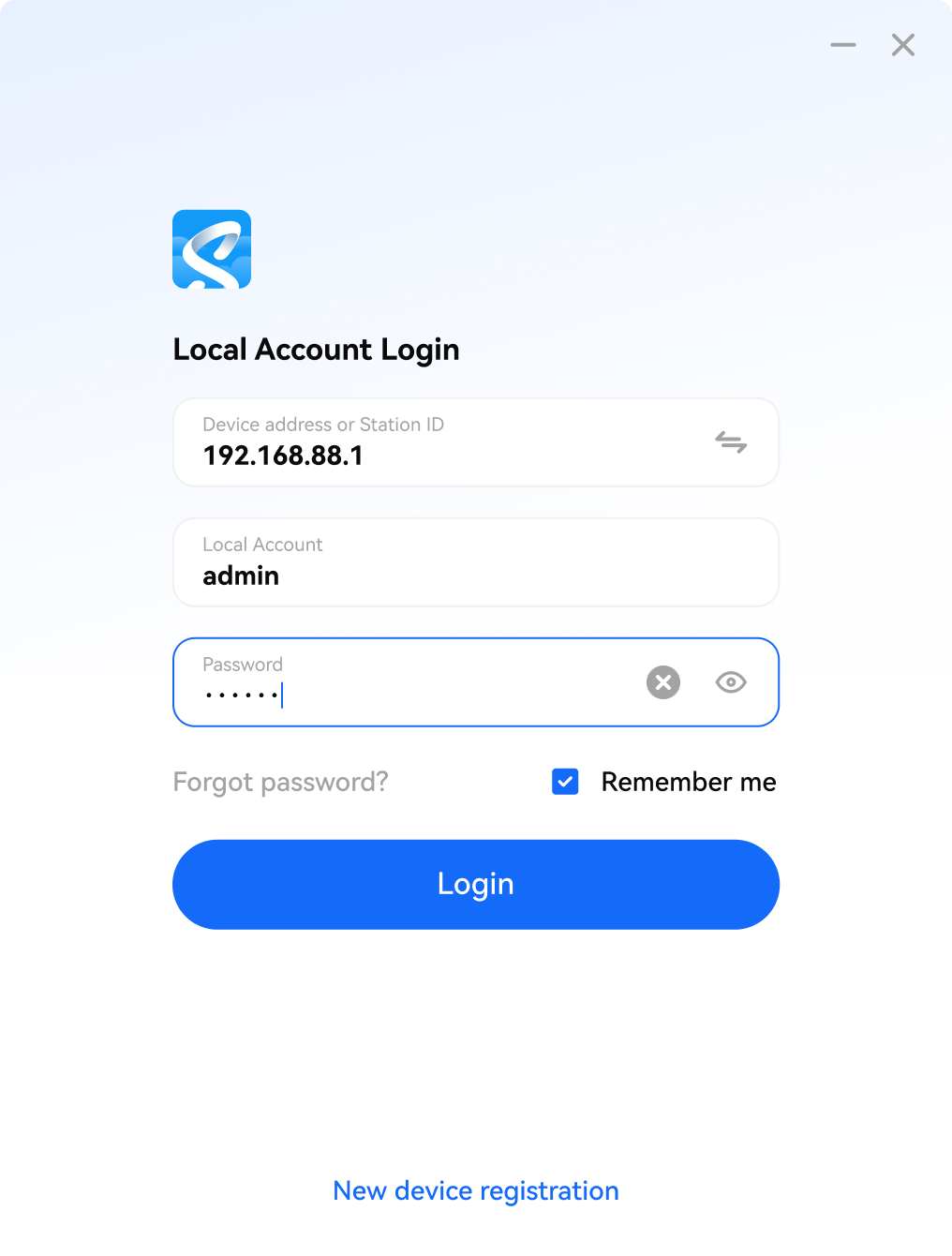
- Enter the correct device IP address (fixed at 192.168.88.1), account, and password to log in
¶ Remote Connection
- Make sure the device has been configured for network access, can access the external network normally, and the side indicator is blue
- Make sure remote access has been enabled on the device
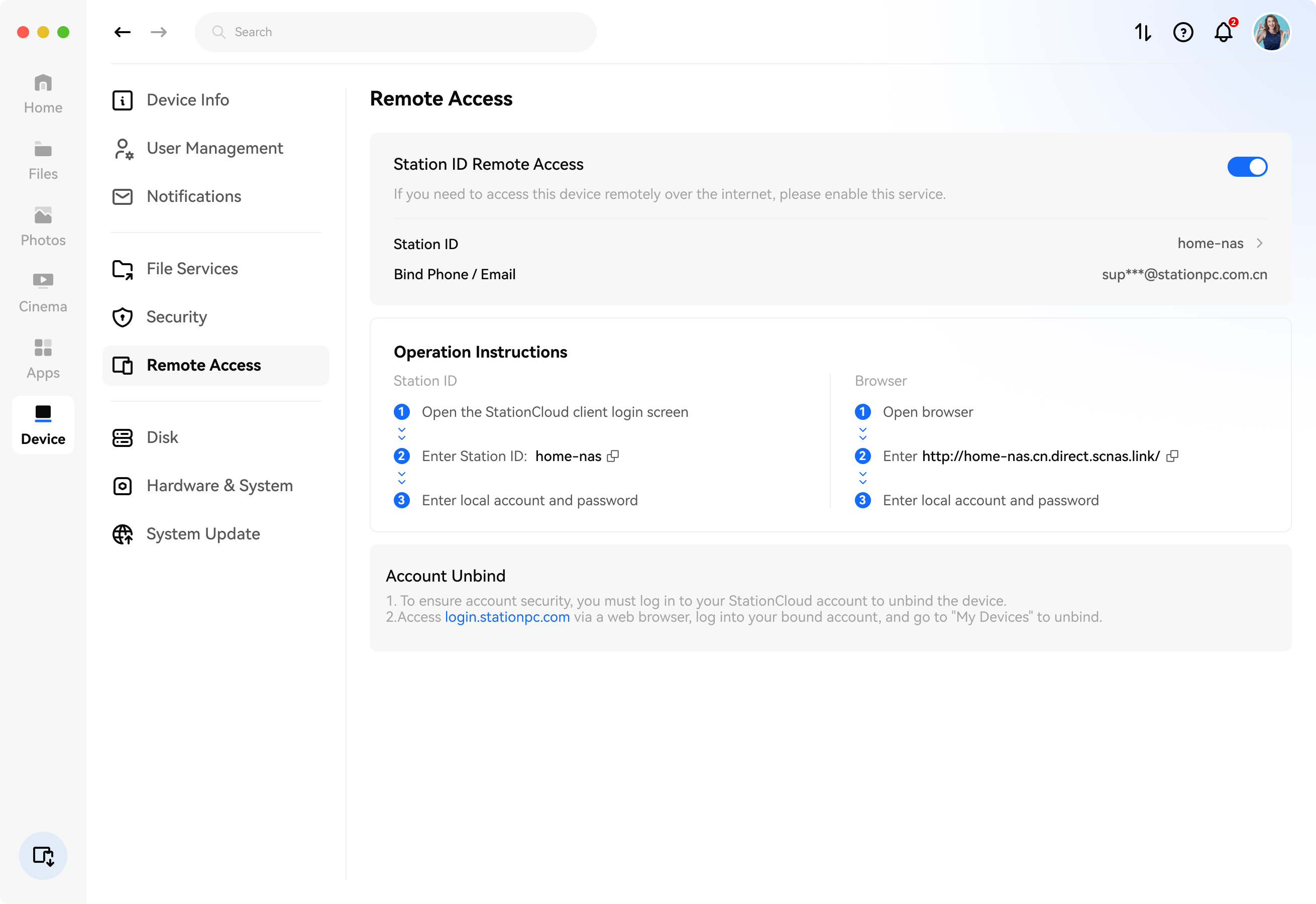
- Enter the correct Station ID, account, and password to log in
¶ Other Notes
- If the connection fails, troubleshoot each access method step by step and make sure every step is completed correctly
- If the issue persists, submit feedback and contact customer support